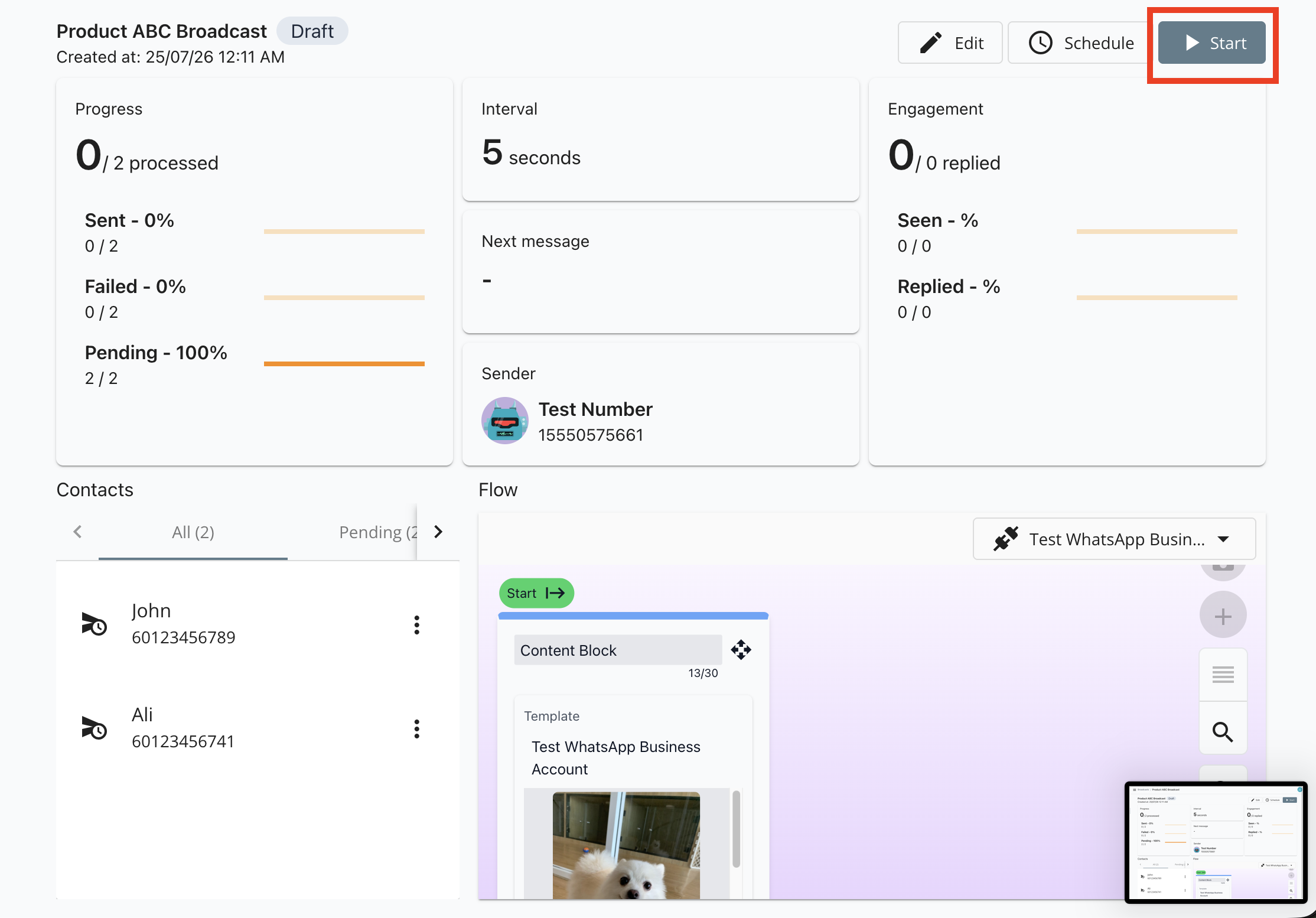
To send a business initiated message to your customer, you need to sent a WhatsApp approved Template message.
Create a WABA Template
ImportantTemplate approval may take up to 24 hours. Plan ahead to avoid disruption on your workflow due to delay in approval.
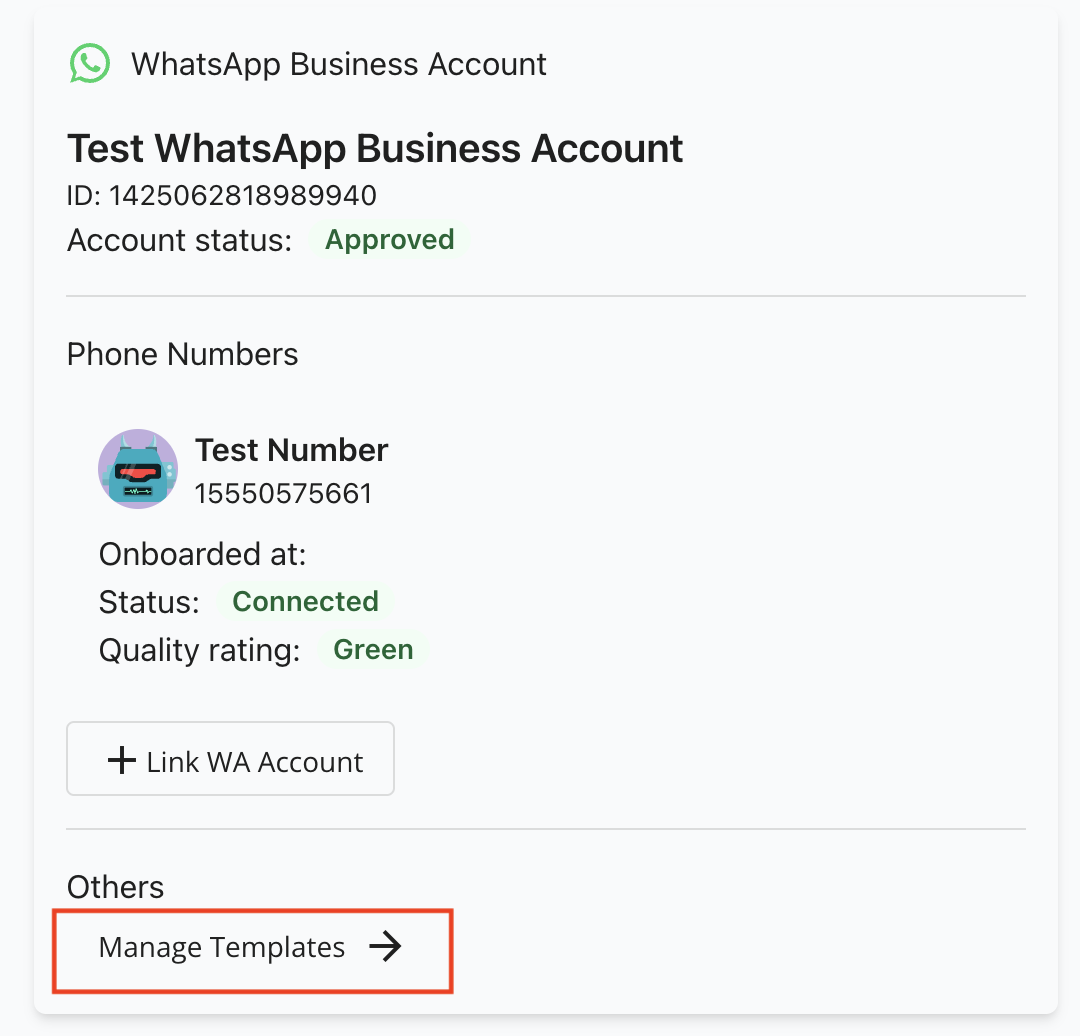
- Go to Integrations => Manage Templates
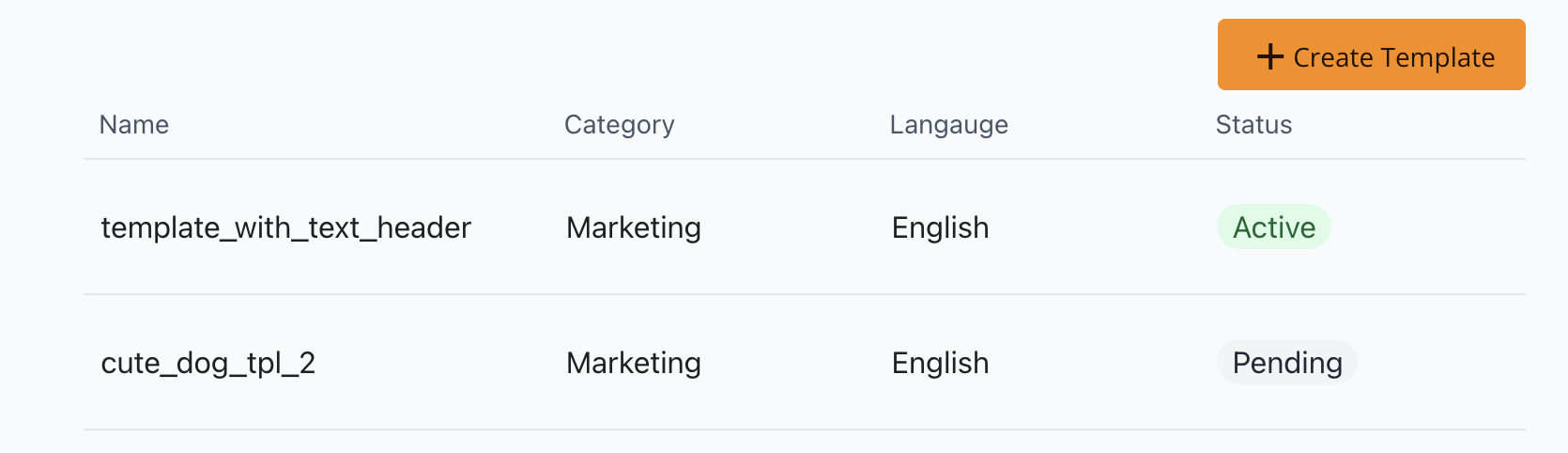
- Click Create Template
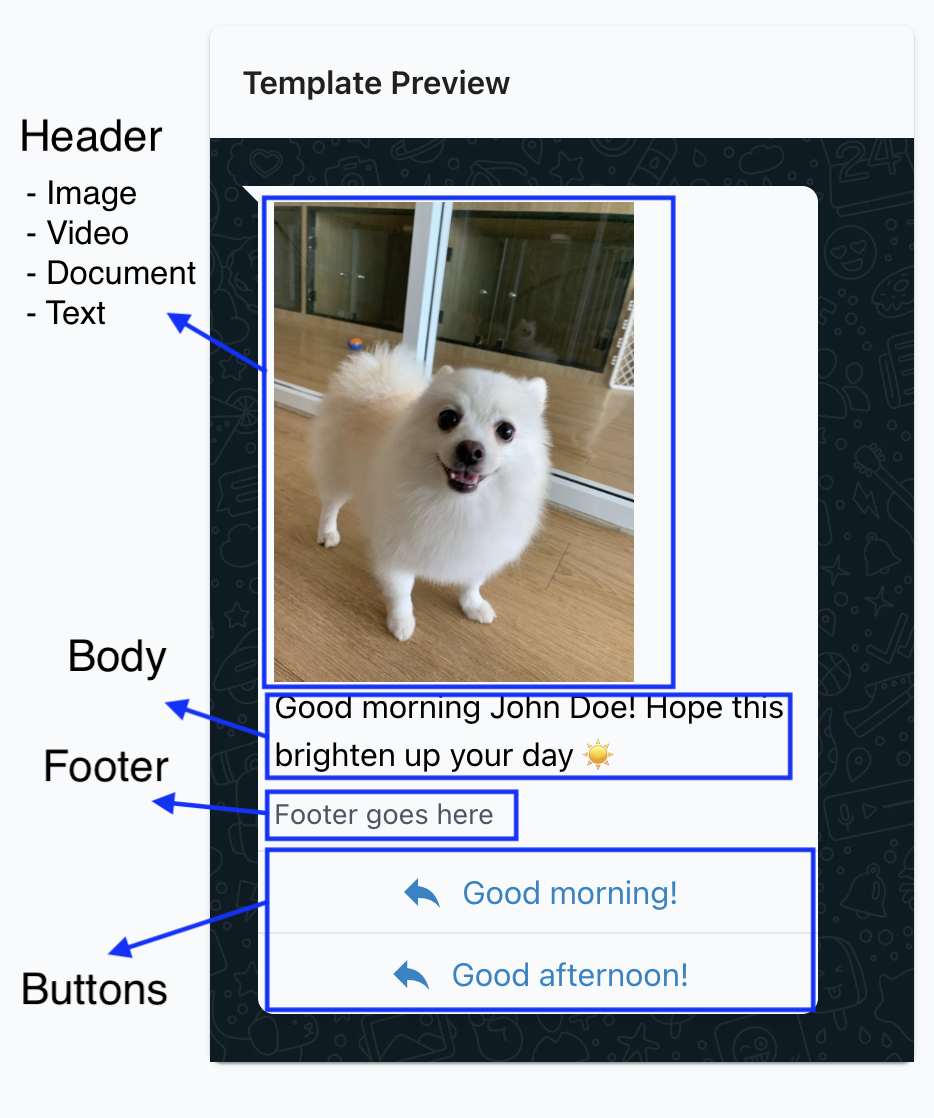
- A Template is divided into several section, namely:
- Header (Optional, can be image / video / document / text)
- Body (Required, must be text)
- Footer (Optional, must be text)
- Button (Optional, can add up to 10 buttons)
- Some example use cases:
- Product promotion - create a Template with an attractive image of your product, copywriting and button (call-to-action) to be broadcasted to your customers
- Re-engagement - follow up your customer that has not replied to your message after some time
- After finish designing your Template, click Create Template
- When WhatsApp approves your Template, you will see a green Active status in your Template. Only Template with Active status can be used for sending.
Sending a WABA Template
ImportantYou must add a payment method in WhatsApp Manager before you can start sending Template message.
You can send approved Template using one of 2 ways:
Sending through Inbox
- Navigate to Inbox.
- Find (or add) a chat with your customer.
- Click on the + button on the left of the text input => Send WhatsApp Template.
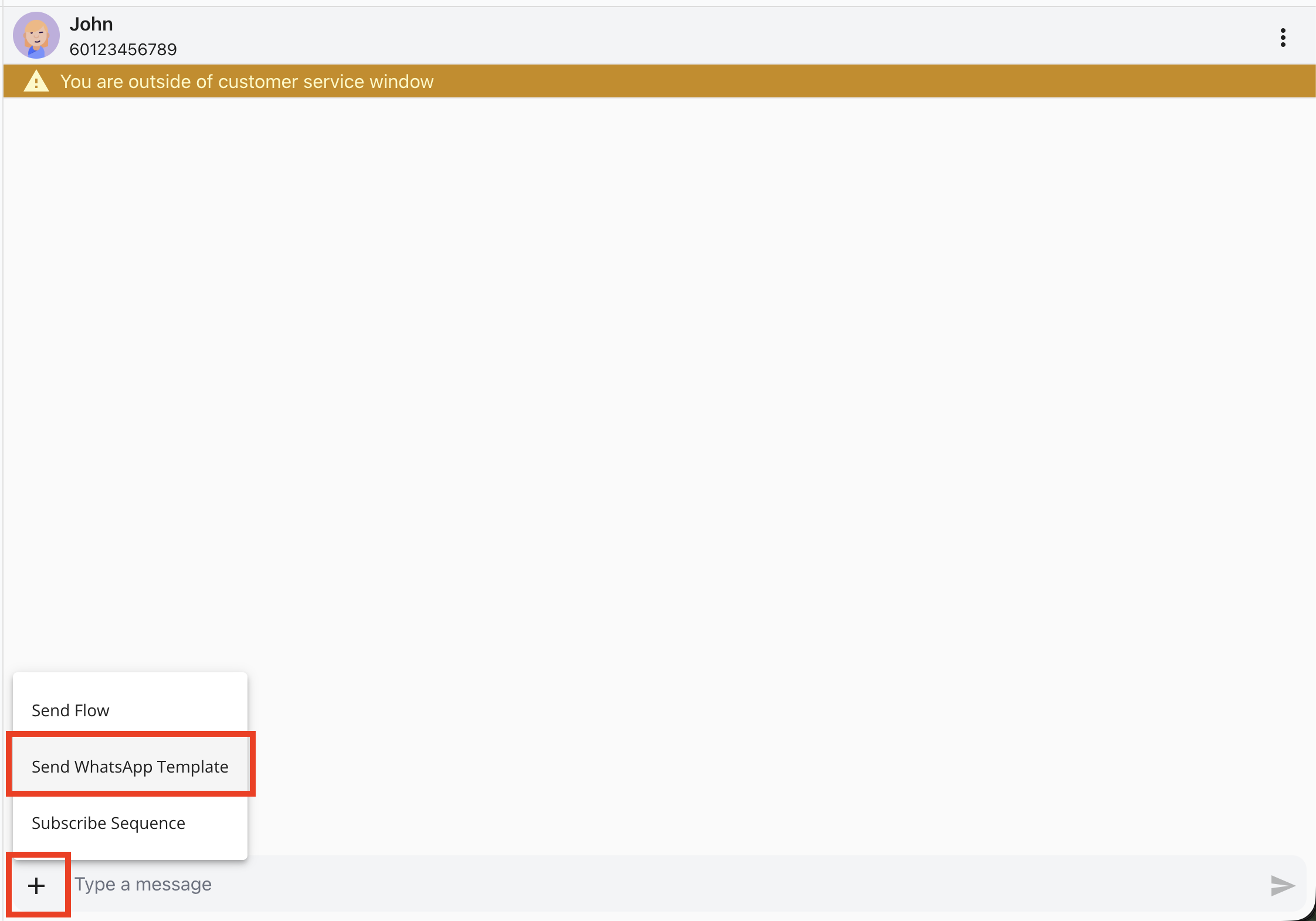
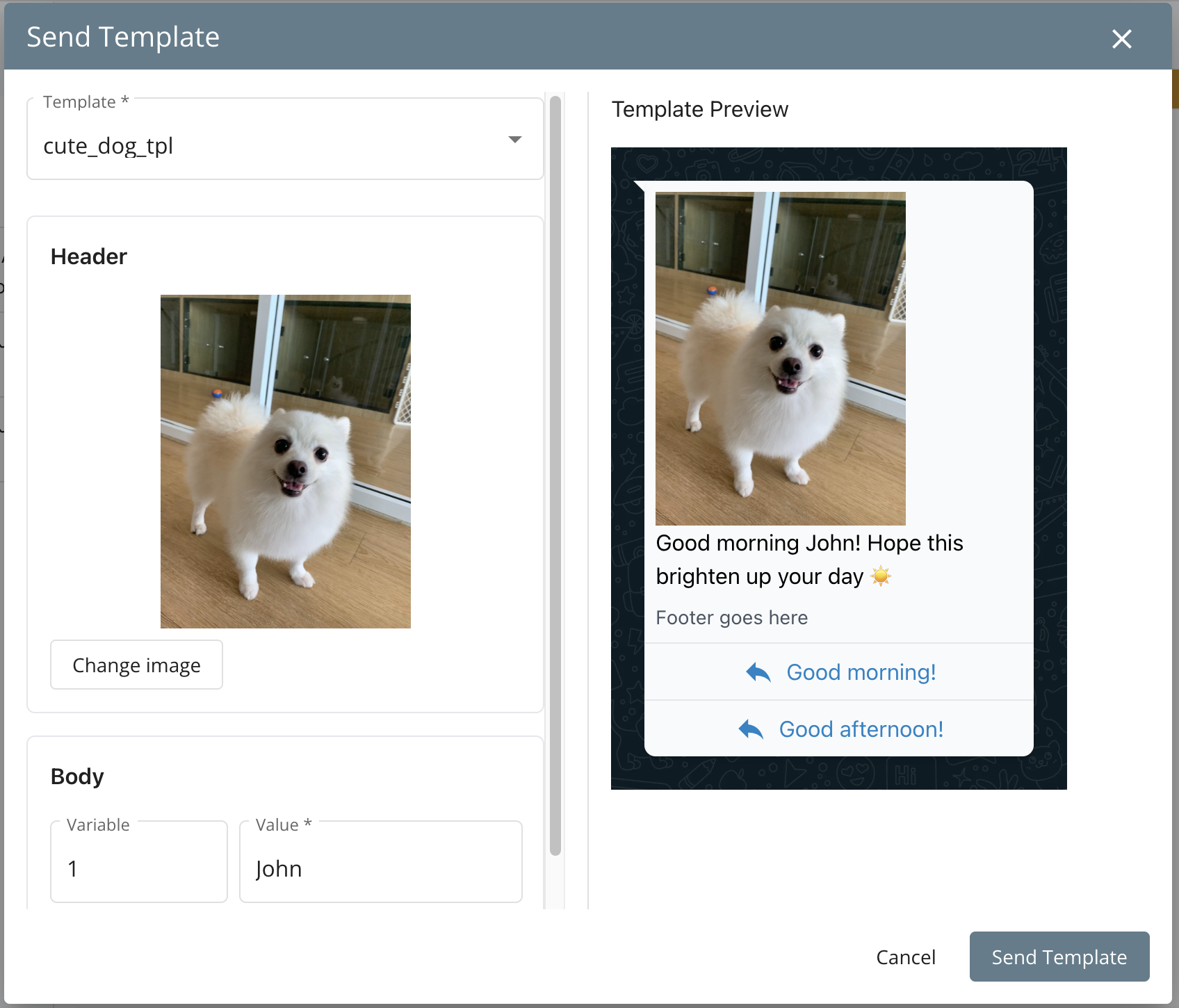
- Select the Template you wish to send, and click Send Template.
Sending through a Flow
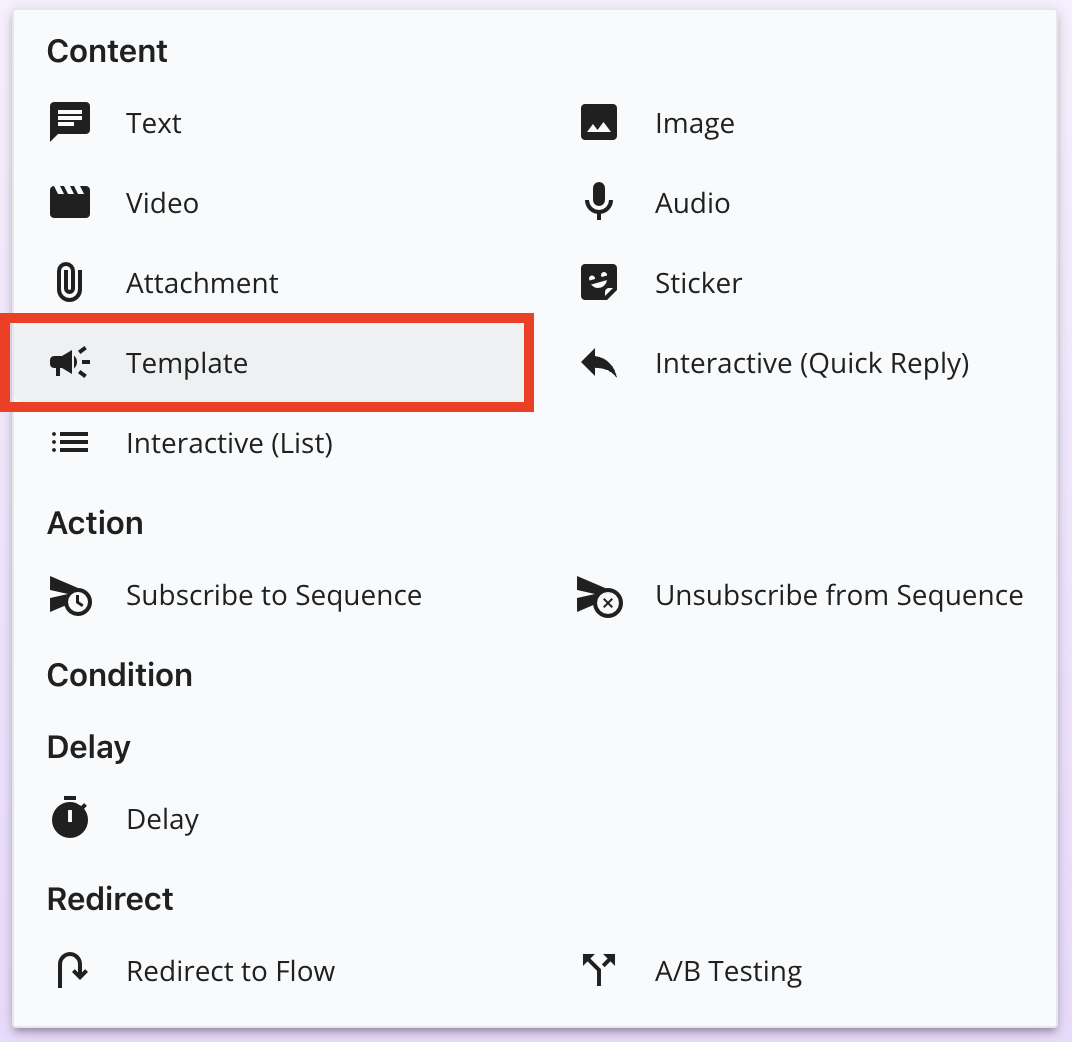
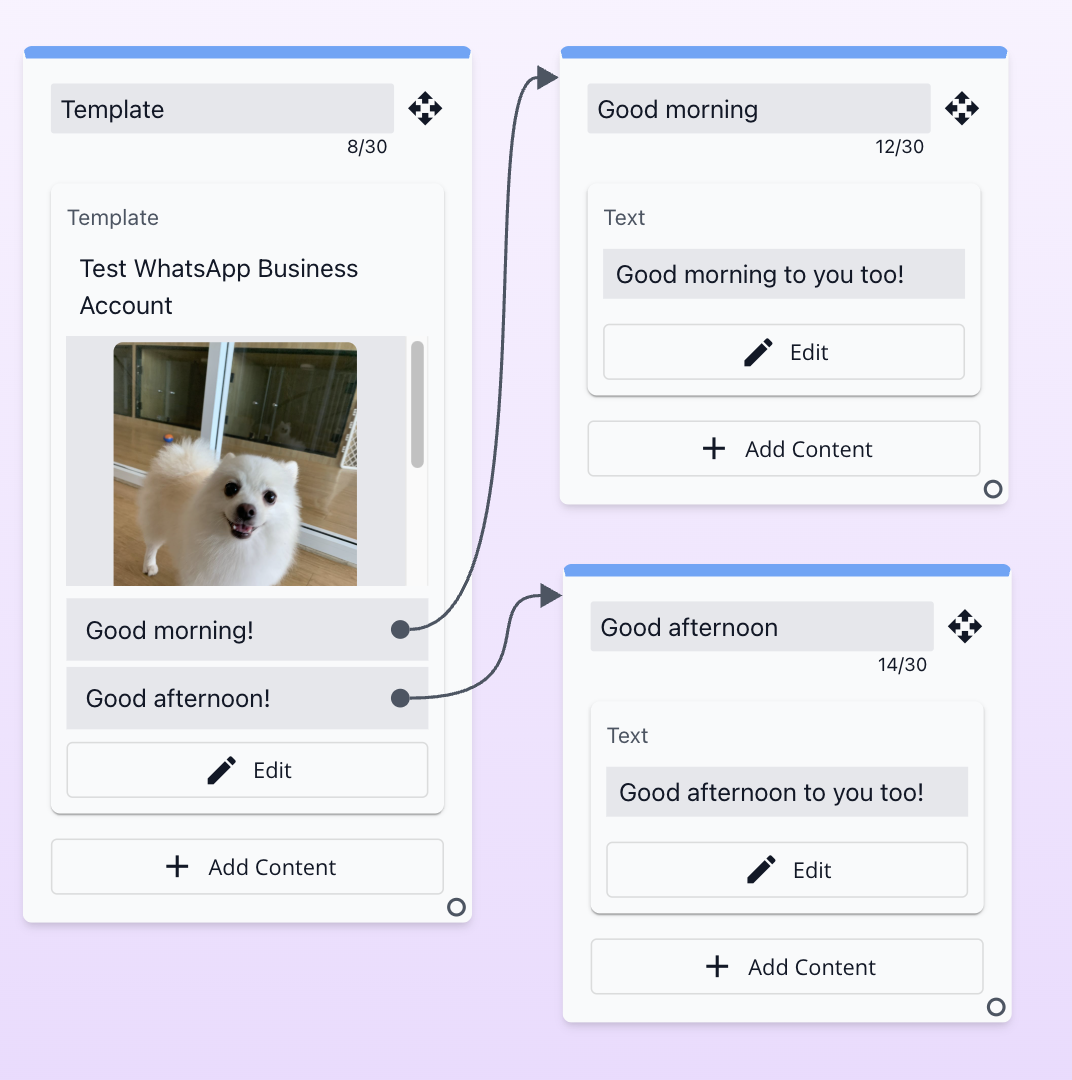
- You can also add the approved Template in a Flow / Broadcast / Sequence Queue, and send it to your customer.
- This has the advantage of:
- Easily reuse for repeated scenario
- No need to manually send contact by contact (through Broadcast)
- Customer’s reply can be automatically handle by bot
Broadcasting WABA Template
ImportantYou must add a payment method in WhatsApp Manager before you can start sending Template message.
You can easily reach hundreds of potential customer with your approved Template message using the Broadcast function.
- Navigate to Broadcasts
- Click Create Broadcast
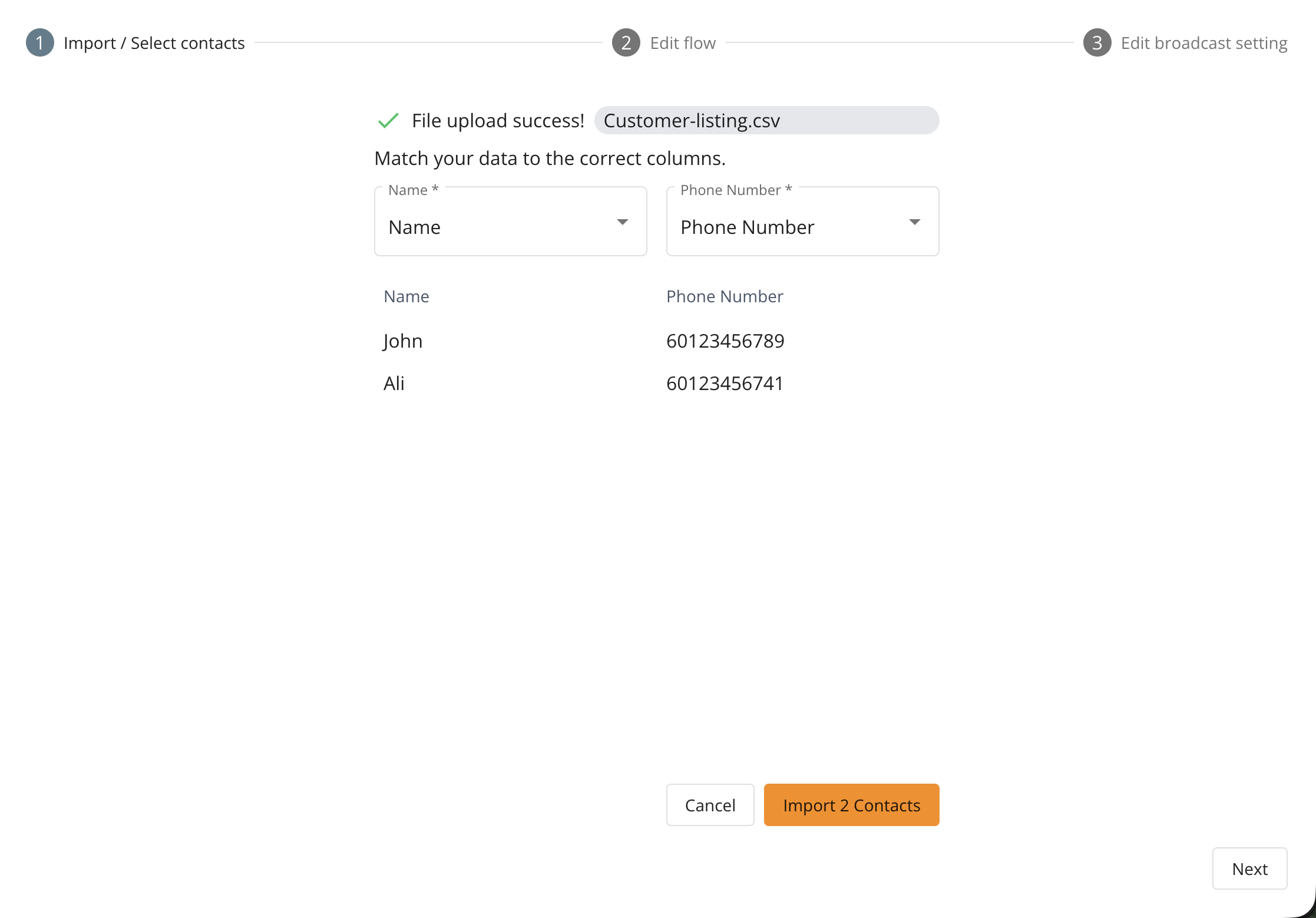
- Upload your contact list. Note that it needs to be in .csv format, and contain name and phone number.
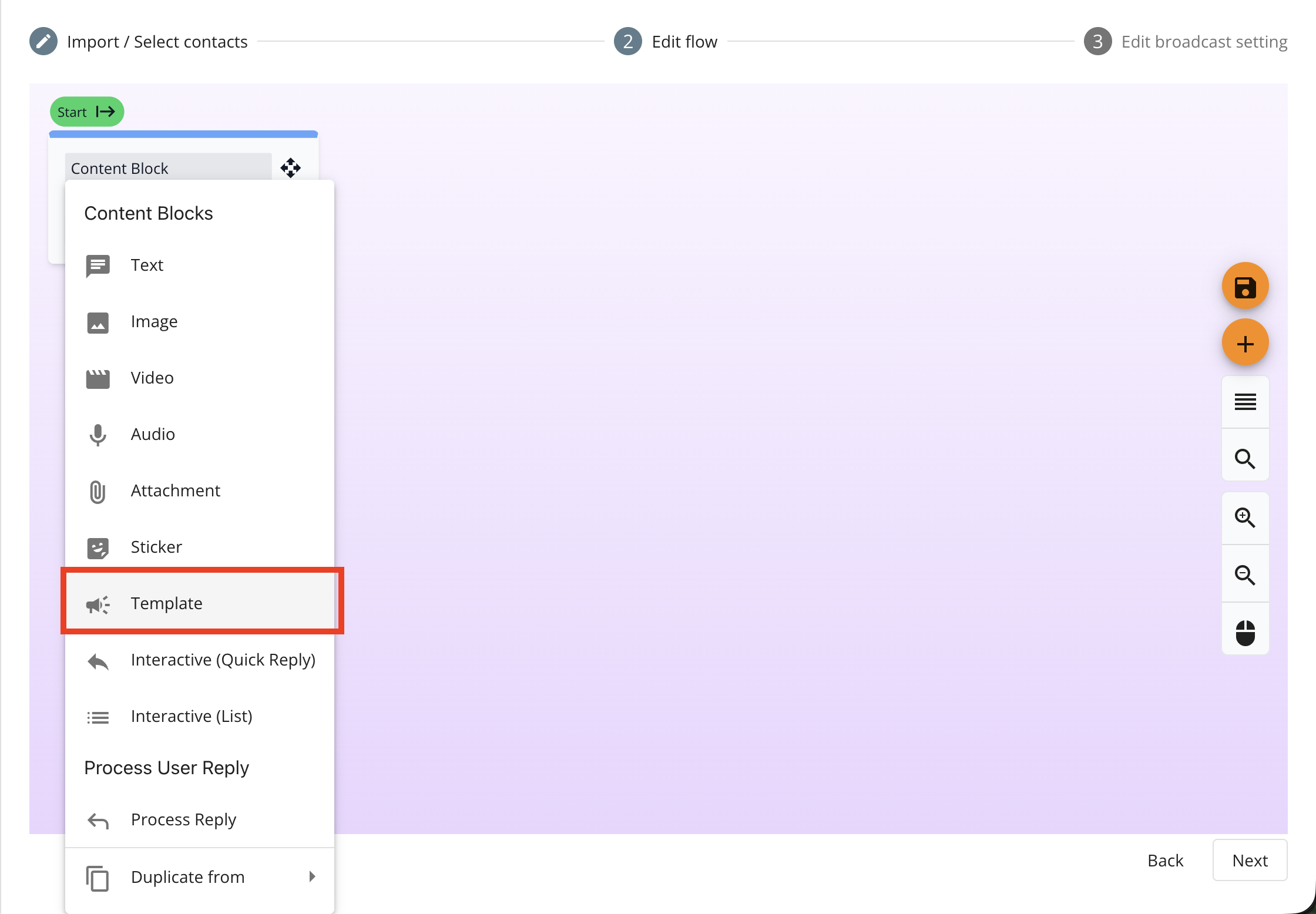
- In the next step, click Add Content and select Template
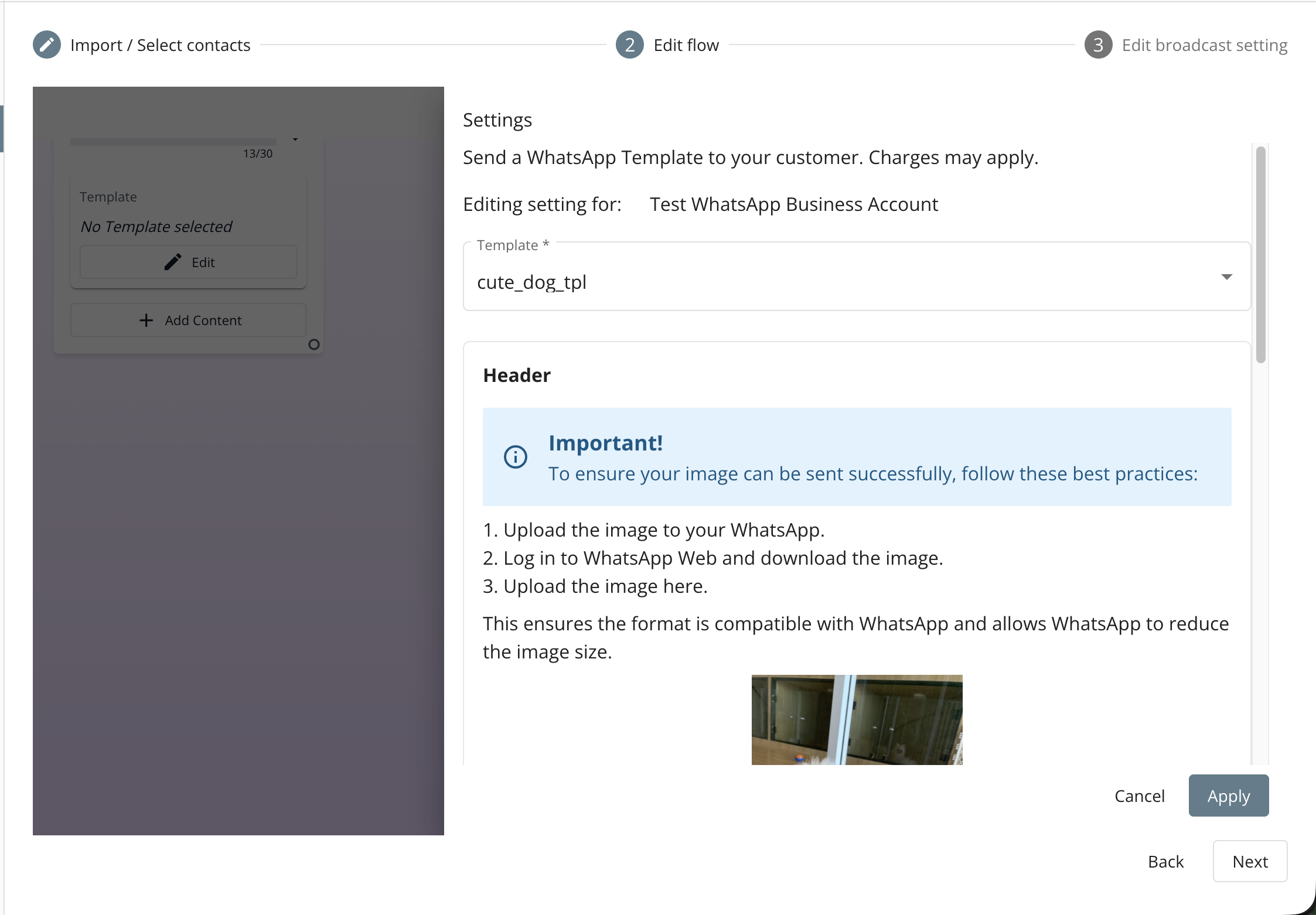
- Select the Template you wish to send, and click Apply.
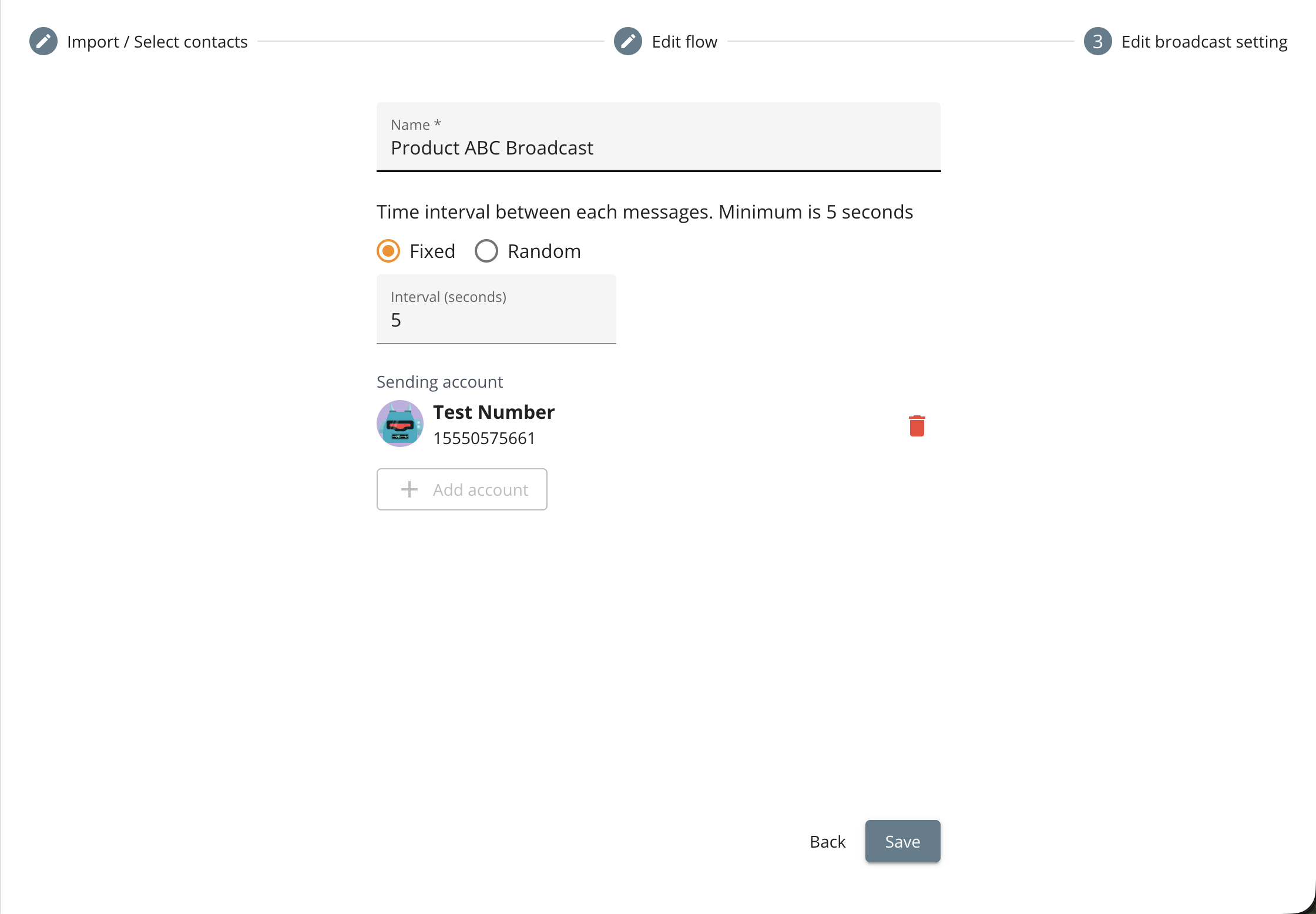
- In the next step, give your broadcast a recognizable name, adjust the interval, and select a sending account. Click Save to complete the setup.
- Finally, you can begin the Broadcast by clicking Start on the top right corner.